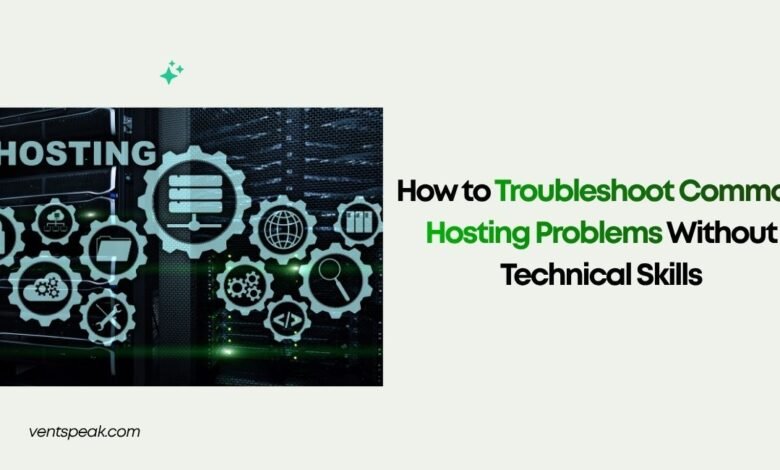
How to Troubleshoot Common Hosting Problems Without Technical Skills

Running into a server error, a blank screen, or an offline website can feel overwhelming—especially if you do not have a background in web development or system administration. However, web hosting issues are rarely mysterious terminal-level failures. Over 80% of everyday hosting disruptions stem from straightforward triggers: domain expiration, exceeded resource caps, plugin incompatibilities, or incorrect file permissions.
Learning how to troubleshoot common hosting problems non-technically saves you hours of waiting on customer support. This beginner-friendly guide walks you through a step-by-step diagnostic framework to identify root causes, resolve common hosting errors independently, and know exactly when to escalate to your web host.
How Do You Troubleshoot Common Hosting Problems?
To troubleshoot common hosting problems without technical skills, use a process of elimination:
- Test Site Availability: Use external monitoring tools like Is It Down Right Now to confirm if the outage affects everyone or just your local connection.
- Read HTTP Error Codes: Identify specific browser status codes (e.g., 500 Internal Server Error, 502 Bad Gateway, 403 Forbidden) to narrow down whether the issue is server-side, permission-based, or script-related.
- Isolate Recent Changes: Revert recent plugin updates, theme changes, or domain DNS updates.
- Check Server Resources: Log into your hosting control panel (cPanel, Plesk, or custom dashboard) to verify if disk space, RAM, or bandwidth limits have been exceeded.
- Clear Local Caches: Flush your browser cache and local DNS resolver to rule out client-side caching glitches.
The Non-Technical Diagnostic Checklist
Before editing files or contacting support, work through this quick 5-minute diagnostic sequence:
- Global vs. Local Check: Open your website in a private/incognito tab or mobile network (Wi-Fi disconnected). If it loads on mobile, the issue is local to your browser or ISP.
- Hosting Account Health Check: Check if your hosting subscription is active and that your payment method on file has not expired.
- Domain Name Status: Use a public WHOIS lookup tool to verify that your domain registration has not lapsed.
- Control Panel Notifications: Log in to your hosting account to see if your server is undergoing scheduled maintenance or resource throttling.
Troubleshooting Matrix: Common Hosting Problems and Fixes
Use this practical matrix to diagnose and solve the most common web hosting issues:
| Error / Symptom | Primary Cause | Immediate DIY Solution | Prevention Tip |
| 500 Internal Server Error | Corrupted .htaccess file, PHP memory exhaustion, or plugin conflict. | Increase PHP memory limit in cPanel or temporarily rename .htaccess to .htaccess_old. | Keep plugins updated and test updates in a staging environment. |
| 502 / 503 Bad Gateway | Web server overloaded, PHP-FPM crashed, or upstream server unresponsive. | Wait 2–3 minutes; if persistent, clear page cache or restart PHP process from control panel. | Upgrade to a higher hosting tier (VPS/Cloud) with dedicated CPU/RAM. |
| 403 Forbidden Error | Incorrect file permissions (e.g., non-644/755) or IP blocked by firewall. | Reset file/folder permissions via cPanel File Manager or request IP unblock from host. | Avoid manual file permission edits via FTP; use standard panel settings. |
| White Screen of Death (WSOD) | Fatal PHP script error or theme incompatibility. | Enable debug mode or rename active theme/plugin folders via File Manager to disable them. | Use managed WordPress hosting with automated error isolation. |
| “Your Connection is Not Private” | Missing, expired, or improperly configured SSL/TLS certificate. | Re-issue a free Let’s Encrypt SSL certificate inside your hosting control panel. | Enable auto-renewal on all installed SSL certificates. |
| Error Establishing Database Connection | Database credentials mismatch in configuration file or MySQL service down. | Verify database username, password, and host inside your wp-config.php or config.php file. | Avoid changing database user passwords manually without updating site files. |
Step-by-Step Solutions for 4 Major Hosting Issues
1. How to Fix 500 Internal Server Errors
A 500 error means the web server encountered an unexpected condition that prevented it from fulfilling the request.
1.Isolate the .htaccess File:Rule out syntax errors in your server configuration file.
Log into your hosting control panel and open File Manager. Navigate to the /public_html/ root directory, locate the .htaccess file, and rename it to .htaccess_old. Reload your site. If it loads, generate a fresh .htaccess file by re-saving your permalink settings inside your CMS.
2.Increase the PHP Memory Limit:Prevent script crashes caused by resource constraints.
Inside cPanel or your hosting panel, look for MultiPHP INI Editor or Select PHP Version. Locate the memory_limit directive and increase it (e.g., from 64M or 128M to 256M or 512M). Save changes and re-test your site.
3.Disable Active Plugins via File Manager:Identify buggy plugins without site access.
Navigate to /public_html/wp-content/ (or your platform’s extension directory) and rename the plugins folder to plugins_old. This temporarily deactivates all plugins. If the site restores, rename the folder back to plugins and rename individual plugin folders one by one to find the culprit.
2. Fixing Database Connection Failures
When your site displays “Error Establishing a Database Connection,” your site’s code cannot communicate with the database.
- Check Database Service Status: Log into your hosting dashboard to ensure the MySQL or PostgreSQL database server is active and running.
- Verify Credentials: Open your site’s configuration file (e.g., wp-config.php for WordPress) in File Manager. Confirm that the DB_NAME, DB_USER, DB_PASSWORD, and DB_HOST values match the credentials listed under the MySQL Databases section of your control panel.
- Repair Corrupted Database Tables: Most control panels include a phpMyAdmin tool. Select your database and run the built-in “Repair Table” operation to fix minor index corruption.
Read More Blogs:
5 Best Web Hosting Providers in 2026: Features, Pricing, and Expert Reviews
9 Best Free Web Hosting With cPanel : Ultimate Guide 2026
What is server hosting? The Ulitimate Guide
Best Hosting Features for WooCommerce Websites
Best Server Performance Monitoring Software to Try in 2026
3. Resolving SSL and HTTPS Errors
If visitors see a security warning stating “Your Connection is Not Private” (ERR_CERT_COMMON_NAME_INVALID):
- Verify Domain Coverage: Ensure your SSL certificate covers both yourdomain.com and [www.yourdomain.com](https://www.yourdomain.com).
- Re-Run AutoSSL: In cPanel or Plesk, navigate to SSL/TLS Status or Let’s Encrypt and click Run AutoSSL or Re-issue Certificate.
- Fix Mixed Content Warnings: If your site displays an insecure lock icon after SSL installation, your site is trying to load images or scripts over http:// instead of https://. Use a search-and-replace tool or SSL plugin to force HTTPS protocol on all asset URLs.
4. Clearing Disk Space and Resource Exhaustion
When hosting accounts reach 100% disk usage, databases stop accepting writes, file uploads fail, and pages crash.
- Delete Residual Backups: Check File Manager for old site export files (.zip, .tar.gz) stored locally on your server.
- Clear Error Logs: Locate large error_log files in your site directories. These text files can grow to several gigabytes during script loops; delete or truncate them to free up immediate storage.
- Manage Email Accounts: If your hosting plan includes webmail, check if uncleaned inbox or spam folders are consuming your shared storage quota.
When and How to Contact Hosting Support
If basic self-troubleshooting does not restore your site, it is time to open a ticket with your provider’s technical support team. To get a quick resolution, provide structured information:
- Specify the Exact URL: Give the direct link where the issue occurs.
- Include Error Messages: Copy and paste the full text of error codes, or attach full-screen screenshots.
- List Recent Actions: Mention any recent updates, code tweaks, or billing changes made right before the problem started.
- Provide Diagnostic Details: State what self-troubleshooting steps you have already attempted (e.g., “I cleared my browser cache, tried an incognito window, and verified database credentials”).
Common Mistakes to Avoid During Troubleshooting
Avoid making these common errors when attempting to fix hosting issues and solutions:
- Editing Files Without Backups: Never alter .htaccess, wp-config.php, or system files without creating a downloaded backup copy first.
- Applying Multiple Changes Simultaneously: Changing PHP versions, editing configuration files, and deleting plugins at the same time makes it impossible to know which action actually fixed or broke the site.
- Ignoring Browser and DNS Caching: Testing site fixes without clearing your local browser cache or using an incognito window often leads to false negatives because your browser serves older, cached error pages.
- Neglecting Server Security Logs: Ignoring repeated 403 or 500 errors can mask an active brute-force or malware injection attempt.
Future Trends in Web Hosting Troubleshooting
Managing web hosting environments is becoming increasingly automated and beginner-friendly:
- AI-Powered Diagnostics: Hosting control panels are adopting built-in AI assistants that analyze log files, detect broken scripts, and offer one-click automated fixes directly inside dashboards.
- Self-Healing Server Environments: Cloud-native hosting platforms automatically detect resource crashes or PHP execution failures, restarting hanging processes and isolating faulty code automatically without user intervention.
- Automated Staging Sandbox Rollbacks: Modern managed web hosting environments automatically take system snapshots before updates, allowing users to perform one-click instant rollbacks if a plugin update breaks live site functionality.
Summary
Knowing how to troubleshoot common hosting problems without advanced technical skills empowers you to quickly diagnose outages, fix common error codes, and maintain consistent online availability. By using systematically isolating issues, checking server resource limits, verifying configuration files, and keeping clean backups, you can resolve most common web hosting problems independently.
Frequently Asked Questions (FAQs)
What is the most common reason a website stops working?
The most common reasons a website goes offline are expired domain registrations, unpaid hosting bills, exceeding resource quotas (such as disk space or bandwidth limits), and software conflicts caused by incompatible plugin or theme updates.
How do I know if my website problem is server-side or client-side?
Test your site using an external site availability checker or open the page on a mobile phone using cellular data (with Wi-Fi turned off). If the site loads on cellular data, the issue is client-side (local network, browser cache, or local DNS). If it fails on all networks, the issue is server-side.
Will troubleshooting hosting problems delete my website data?
Simply checking error logs, clearing caches, testing plugin folders, or increasing PHP memory limits will not delete your site data. However, you should always download a complete website and database backup before editing system configuration files or deleting files from your server.
What should I do if my hosting account runs out of disk space?
Log into your hosting control panel’s File Manager, locate and delete large unneeded files (such as old backup archives or error logs), empty webmail trash folders, or upgrade your hosting plan to a higher tier with expanded storage.
How do I flush my local DNS cache to see site updates?
On Windows, open Command Prompt and type ipconfig /flushdns, then press Enter. On macOS, open Terminal and run sudo dscacheutil -flushcache; sudo killall -HUP mDNSResponder. This clears outdated IP address mappings saved on your computer.