Server Virtualization Explained: Everything Beginners Should Know

For decades, traditional IT infrastructure operated under a simple but wasteful rule: one application per physical server. Under this model, data centers were filled with underutilized hardware running at an average capacity of just 10% to 15%.
Understanding server virtualization is essential for developers, business owners, and IT professionals looking to build flexible, high-performance, and cost-effective server environments. By decoupling software from physical hardware, virtualization powers modern web hosting, VPS environments, and global cloud networks.
What Is Server Virtualization?
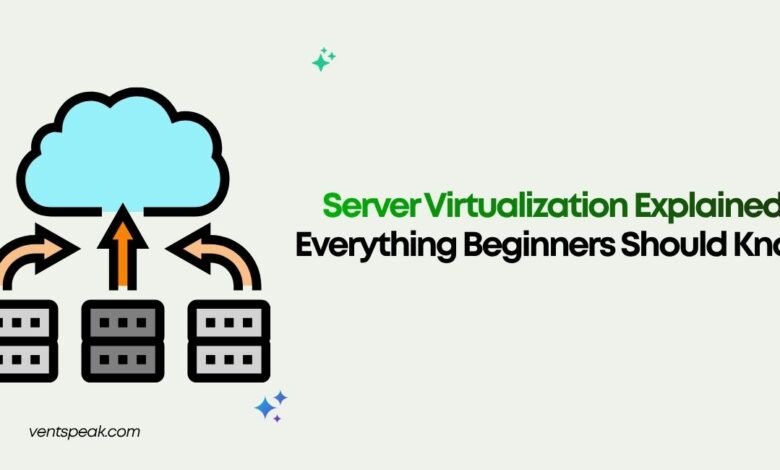
Server virtualization is a process that divides a single physical server into multiple isolated virtual servers—often called Virtual Machines (VMs) or virtual instances. Using a software abstraction layer called a hypervisor, hardware resources such as CPU, RAM, NVMe storage, and network bandwidth are abstracted and dynamically allocated across multiple independent operating systems running on the same host machine.
1. How Server Virtualization Works: The Hypervisor Core
At the center of what is server virtualization is the hypervisor (also referred to as a Virtual Machine Monitor or VMM). The hypervisor intercepts requests between the guest virtual environment and the underlying physical hardware, allocating compute capacity on demand while keeping every virtual server strictly isolated.
Key Components of a Virtualized Server
- Host Machine: The physical compute hardware (CPU, memory, storage disks, network cards) providing base resources.
- Hypervisor: The software or firmware layer that coordinates resource distribution and maintains VM isolation.
- Guest Machine (VM): An isolated virtual environment running its own operating system (Linux, Windows Server, BSD) and application stack.
2. Types of Server Virtualization Hypervisors
Understanding server virtualization explained requires distinguishing between the two primary hypervisor models used across enterprise environments and web hosting platforms.
Type 1 Hypervisor (Bare-Metal)
Type 1 hypervisors install directly onto the physical server hardware, operating without a general-purpose host OS.
- Key Advantages: Maximum processing efficiency, low latency overhead, enterprise-grade stability, and strong guest isolation.
- Common Industry Examples: VMware ESXi, Microsoft Hyper-V, Proxmox VE, KVM (Kernel-based Virtual Machine).
- Primary Use Cases: Cloud hosting providers, enterprise data centers, and managed VPS platforms.
Type 2 Hypervisor (Hosted)
Type 2 hypervisors run as software applications on top of a primary host operating system (such as Windows, macOS, or Ubuntu Linux).
- Key Advantages: Easy setup, zero custom hardware requirements, ideal for desktop testing and local software development.
- Common Industry Examples: Oracle VirtualBox, VMware Workstation, Parallels Desktop.
- Primary Use Cases: Local developer workstations, software testing environments, and educational labs.
3. The 3 Primary Approaches to Virtualization
Beyond hypervisor placement, virtualization architectures are categorized by how guest operating systems interact with host hardware:
- Full Virtualization: The hypervisor emulates complete underlying physical hardware. Guest operating systems require no modifications and operate completely unaware that they are running inside a virtual environment.
- Paravirtualization: The guest operating system is modified to be aware of the hypervisor layer. It communicates directly via specialized “hypercalls,” reducing emulation overhead and boosting processing throughput.
- OS-Level Virtualization (Containerization): Instead of virtualizing hardware, the host kernel is shared across multiple isolated user-space instances (containers like Docker or LXC). This delivers ultra-lightweight execution with minimal resource overhead.
4. Key Business & Technical Benefits
Transitioning from legacy dedicated hardware to a virtual server architecture delivers operational advantages across performance, scalability, and security.
- Dramatically Lower Infrastructure Costs: Consolidates multiple server workloads onto fewer physical machines, cutting server procurement, power consumption, cooling, and rack space requirements.
- Rapid Resource Provisioning: Deploying a new virtual server takes seconds via pre-configured OS templates, compared to days or weeks for physical server procurement.
- Enhanced Business Continuity & Live Migration: Hypervisors enable live migration (e.g., VMware vMotion), allowing running VMs to transfer between physical hardware nodes without user downtime during hardware maintenance.
- Isolated Security Boundaries: If an application inside one VM experiences a security breach or memory failure, other virtual environments on the same physical host remain unaffected.
Virtualization Architecture Comparison Matrix
| Architectural Dimension | Full Virtualization (Type 1) | Paravirtualization | OS-Level Containers |
| Hardware Overhead | Low to Moderate | Extremely Low | Minimal (Zero hardware emulation) |
| Guest OS Modification | None Required | Required (Hypercall enabled) | Shares Host Kernel |
| Isolation Level | Complete Hardware Isolation | Strong Software Isolation | Process-level Kernel Isolation |
| Provisioning Speed | Minutes | Minutes | Seconds |
| Resource Efficiency | High | Very High | Maximum Density |
| Typical Deployment | VPS Hosting, Public Clouds | Specialized Enterprise Clouds | Microservices, Application Stacks |
Step-by-Step Guidance: Deploying Your First Virtual Environment
Follow this actionable step-by-step roadmap to set up a local or hosted virtual server:
Step 1: Select the Right Hypervisor
Choose a Type 1 hypervisor (such as Proxmox VE or KVM) for production server workloads, or a Type 2 hypervisor (like Oracle VirtualBox) for local development.
Step 2: Calculate Hardware Allocations
Determine baseline CPU cores, RAM allocation, and disk space required for guest workloads. Avoid over-committing physical memory without dedicated swap space reserves.
Step 3: Configure Virtual Networking
Set up virtual switches (vSwitches) and select the proper network mode:
- Bridged Networking: Assigns the VM its own IP address on the physical local network.
- NAT (Network Address Translation): Hides the VM behind the host system’s IP address for internal testing.
Step 4: Enforce Security & Resource Limits
Apply strict bandwidth and CPU usage limits per VM to prevent “noisy neighbor” resource starvation. Enable automated daily VM snapshot policies for rapid rollbacks.
Common Server Virtualization Mistakes to Avoid
- Over-Allocating Virtual Resources: Assigning more vCPUs and RAM to individual VMs than necessary, causing CPU wait times and degrading host performance.
- Neglecting Hypervisor Security Patches: Treating the hypervisor as set-and-forget hardware. Unpatched hypervisors expose all underlying virtual instances to hypervisor breakout exploits.
- VM Sprawl: Creating unmonitored virtual servers without strict lifecycle policies, wasting storage space and creating security vulnerabilities.
- Inadequate Backup Policies: Relying solely on VM snapshots instead of maintaining isolated, offsite file-level and database backups.
Read More Blogs:
5 Best Web Hosting Providers in 2026: Features, Pricing, and Expert Reviews
9 Best Free Web Hosting With cPanel : Ultimate Guide 2026
What is server hosting? The Ulitimate Guide
Best Hosting Features for WooCommerce Websites
Best Server Performance Monitoring Software to Try in 2026
Conclusion & Actionable Takeaways
Understanding server virtualization is the baseline for modern cloud engineering, web hosting, and IT infrastructure. By leveraging hypervisors to split physical resources into isolated virtual servers, organizations unlock unprecedented efficiency, scalability, and disaster resilience.
Core Takeaways:
- Choose the Right Hypervisor: Deploy Type 1 bare-metal hypervisors for production workloads and Type 2 hosted hypervisors for testing.
- Optimize Resource Density: Maximize hardware utilization without over-committing physical memory or causing CPU queue bottlenecks.
- Secure the Virtual Perimeter: Keep hypervisors patched, isolate guest networks, and set up routine offsite backups alongside snapshot retention schedules.
Mastering these core principles allows you to build high-performance, cost-efficient server infrastructures tailored for modern digital applications.
Frequently Asked Questions (FAQs)
What is server virtualization in simple terms?
In simple terms, server virtualization is a technology that takes one physical server and splits it into multiple independent virtual servers. Each virtual server runs its own operating system and applications just like a separate physical machine.
What is the difference between a physical server and a virtual server?
A physical server is dedicated hardware running a single operating system directly on its components. A virtual server is a software-based instance running alongside other VMs on shared hardware managed by a hypervisor.
What is the role of a hypervisor in server virtualization?
A hypervisor is the software management layer installed between physical hardware and virtual environments. It abstracts CPU, memory, and storage, allocating resources dynamically while keeping each VM securely isolated.
How does server virtualization differ from containerization?
Server virtualization creates complete virtual machines—each with its own full operating system and emulated hardware. Containerization virtualizes at the OS kernel level, allowing multiple lightweight applications to share the host OS kernel.
Can server virtualization save hosting costs?
Yes. By consolidating multiple workloads onto fewer physical servers, virtualization increases hardware utilization from ~15% to 80%+, reducing server purchases, power bills, cooling requirements, and data center space.