Introduction:
Red Hat Enterprise Linux (RHEL) 9 is a powerful operating system widely used in enterprise environments due to its stability, security, and extensive support options. However, users often encounter frequent message notifications that can be distracting and disrupt workflow. Knowing how to turn off RHEL 9 message notifications is essential for maintaining a seamless and productive experience on this operating system. This article will explore various methods to turn off these notifications and ensure a smoother user experience.
Understanding RHEL 9 Message Notifications:
RHEL 9 message notifications are designed to keep users informed about system updates, security alerts, and other critical events. While these notifications can be helpful, they can also become overwhelming, especially in environments where multiple users or administrators constantly interact with the system. Many users prefer to turn off RHEL 9 message notifications to maintain productivity and focus. This guide will help you understand the steps to manage and customize these notifications effectively.
Why Turn Off RHEL 9 Message Notifications?
There are several reasons why users might want to turn off RHEL 9 message notifications:
- Frequent notifications can interrupt workflow in a busy work environment, reducing productivity.
- Some notifications may only be relevant to some users, especially in a multi-user environment with different roles and responsibilities.
- Turning off unnecessary notifications can reduce system overhead, as fewer resources are consumed in generating and displaying these messages.
Methods to Turn Off RHEL 9 Message Notifications:
Users can employ various methods to turn off RHEL 9 message notifications, depending on their preferences and system requirements. Here are some effective strategies to consider:
1. Using the GNOME Desktop Environment Settings:
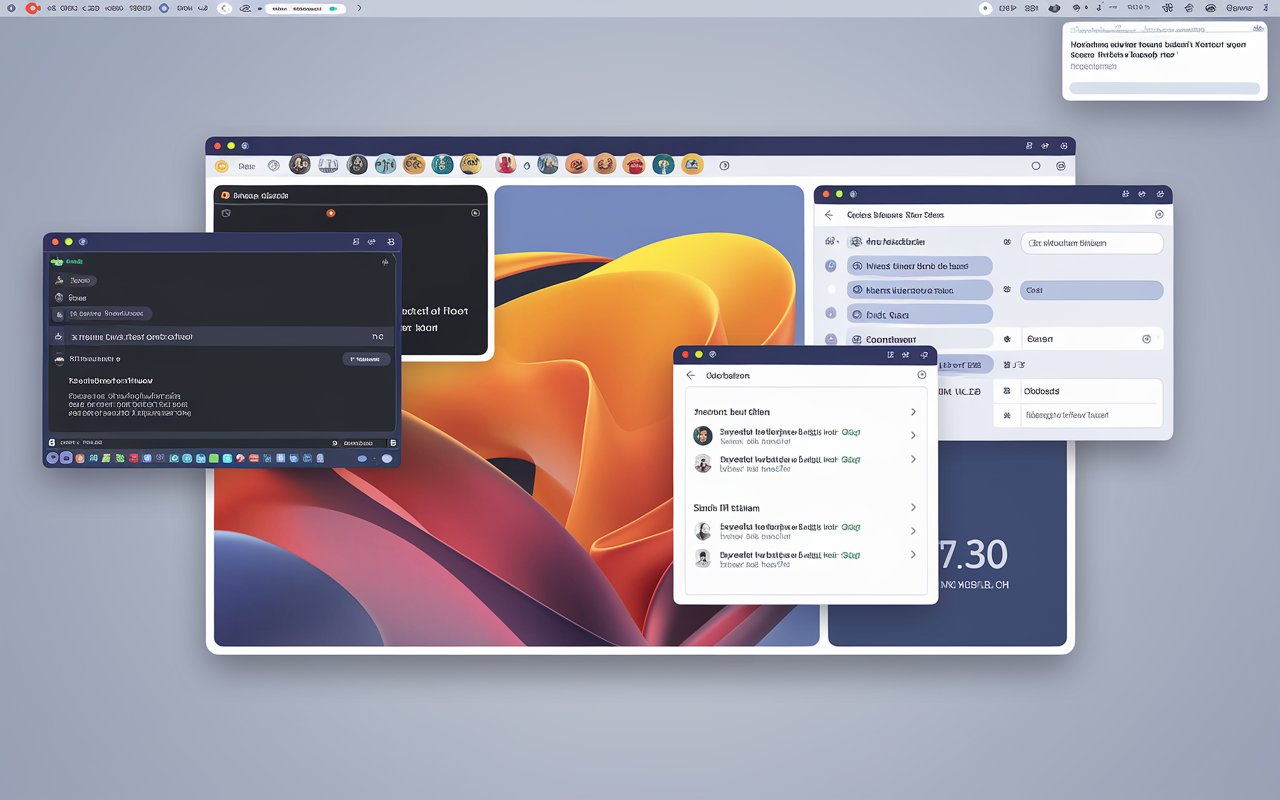
If you are using the GNOME desktop environment on RHEL 9, you can quickly turn off RHEL 9 message notifications through the system settings. Follow these steps:
- Open the Settings application from the GNOME Activities menu.
- Navigate to the Notifications section.
- Here, you will see a list of applications that can send notifications. Find the specific application or service you want to turn off notifications.
- Toggle the notification settings to “Off” to disable notifications for that application.
By following these steps, you can selectively turn off RHEL 9 message notifications for specific applications or services, allowing you to control which alerts are important.
2. Disabling Notifications via Command Line:
For users comfortable with the command line interface (CLI), disabling RHEL 9 message notifications can be achieved by altering system settings directly through terminal commands. To turn off RHEL 9 message notifications, follow these steps:
- Open a Terminal: Open a terminal window on your RHEL 9 system.
- Disable Notifications for Specific Applications: To turn off notifications for a specific application, you must modify the notification settings using the appropriate commands. For instance, use a command to set the notification preference for a particular application to “false,” indicating that notifications should be turned off. Make sure to replace the placeholder with the name of the application for which you want to turn off notifications.
- Turn Off All Notifications: If you prefer to turn off all notifications globally across the system, you can modify the notification daemon settings. This change will prevent the system from displaying notifications, reducing interruptions and distractions.
By executing these steps, you can effectively turn off RHEL 9 message notifications for individual applications or the entire system, depending on your preferences.
Customizing Notification Preferences:
While it is possible to turn off RHEL 9 message notifications entirely, some users may prefer to customize their notification settings to receive only critical alerts. This approach allows for a balance between staying informed and minimizing distractions. Users can customize their notification preferences through the Settings application by selecting specific alerts they wish to receive, such as system updates, security notifications, or application alerts.
Managing System Notifications Using Third-Party Tools:
In addition to the built-in tools provided by RHEL 9, users can also use third-party tools and extensions to manage and turn off RHEL 9 message notifications. For example, the Gnome Tweak Tool provides advanced settings and options for customizing the GNOME desktop environment, including notification preferences. Installing and configuring this tool allows users to gain more granular control over their notification settings, ensuring a more personalized and efficient user experience.
Considerations Before Disabling Notifications:
Before turning off RHEL 9 message notifications, it is essential to consider the potential impact on system security and maintenance. Notifications often provide critical information about security vulnerabilities, system updates, and other important events that require prompt attention. By turning off these alerts, users may miss out on important information that could affect the security and stability of their systems. Therefore, it is recommended that notifications be carefully assessed to determine which notifications are necessary and which can be safely disabled.
Conclusion:
Learning how to turn off RHEL 9 message notifications is essential for users and administrators looking to optimize their workflow and maintain a distraction-free environment. By using the GNOME desktop settings, command line tools, and third-party applications, users can customize their notification preferences to suit their specific needs. While turning off notifications can enhance productivity, it is crucial to ensure that critical alerts are still received to maintain system security and performance. Following the methods outlined in this article, users can effectively manage and turn off RHEL 9 message notifications, creating a more streamlined and efficient user experience.
About the Author